
Daily Goals
Create your daily routine
Section titled “Create your daily routine”- Create a project and choose Daily Goals as its Type.
- Select that project in the sidebar.
- Choose New Goal, or File > New Goal (Shift-Command-G).
- Enter a name and choose Tracking. For a counter, enter a positive whole-number Daily target.
- Choose Create.
New goals appear in Today immediately. Ordinary tasks and Daily Goals stay separate: task searches, task status counts and Clear Completed do not include goals.
Check-offs and counters
Section titled “Check-offs and counters”Daily Check-off: mark the checkbox when done, and uncheck it to reverse today’s completion.
Counter: use + to add one or - to subtract one. Values never go below zero. A counter is complete when its value reaches or exceeds its target, and can continue above the target. Each completed goal counts once in the sidebar badge, regardless of how far above target it is.
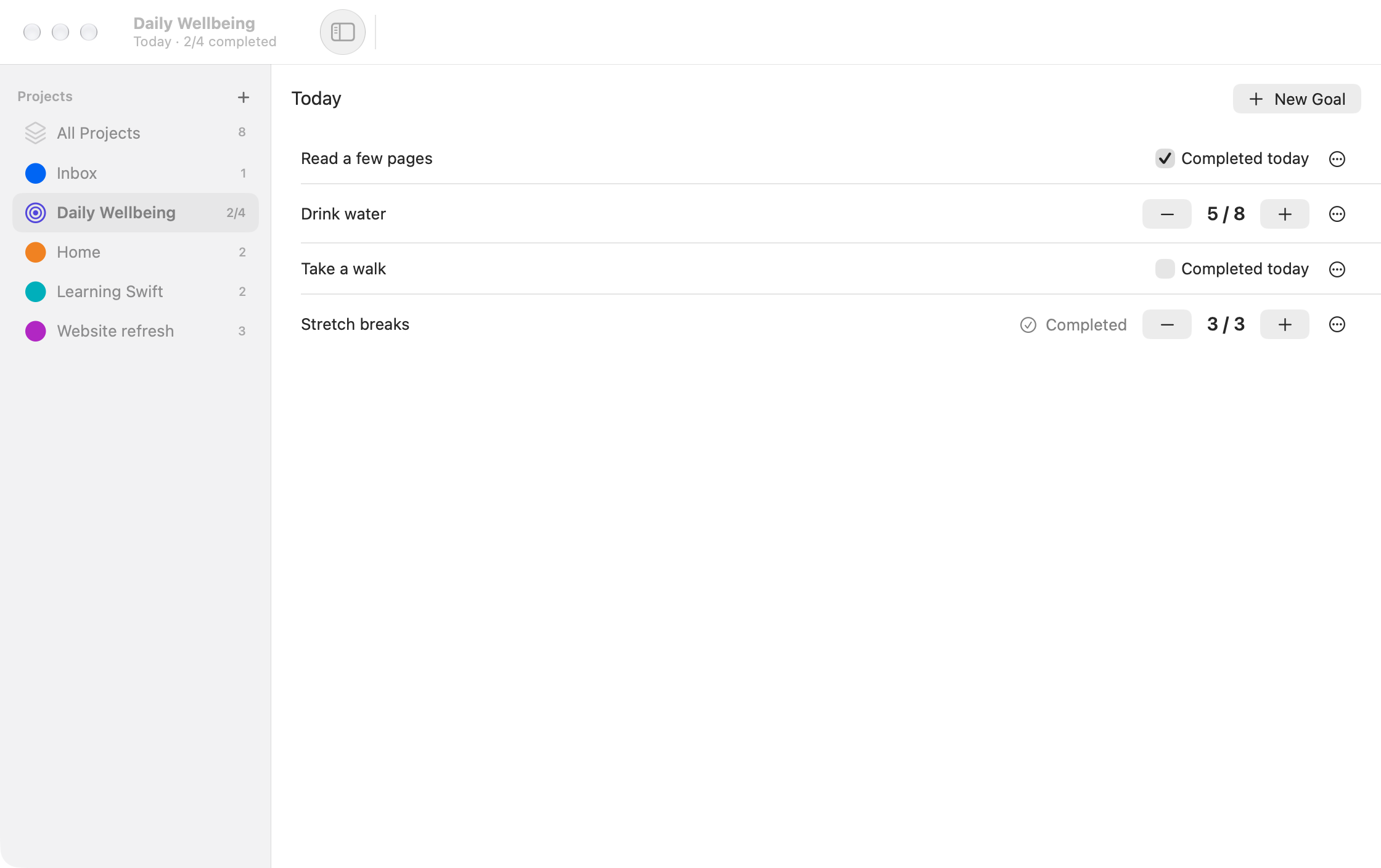
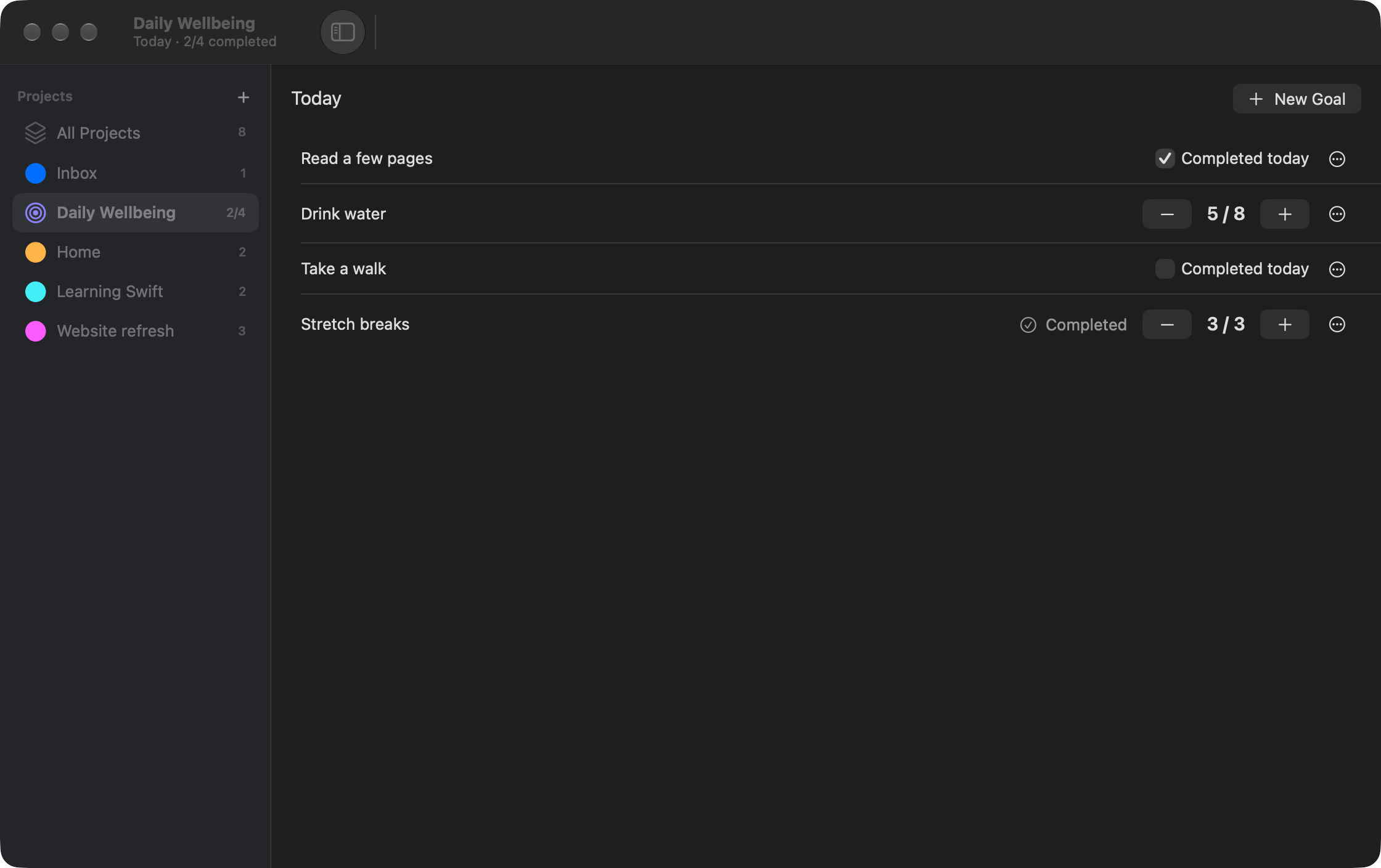
Select a goal to use the Goal menu for editing, toggling completion, increasing/decreasing progress or removal. Each row also has a Goal Actions ellipsis menu for editing and removal.
A fresh local day
Section titled “A fresh local day”Each local calendar day starts with fresh progress. Incomplete goals do not carry forward, and a previous day’s count is not added to today’s.
The app checks for a new day while running and when it becomes active again. After sleep or a time-zone change, the view uses your Mac’s local calendar day. It does not create missed-day entries while the app is closed or a project is archived.
Recorded progress stays saved separately from the goal’s current definition. This version displays Today only: there is no history browser, streak tracking or chart view.
Edit a goal
Section titled “Edit a goal”Use the row’s ellipsis menu and choose Edit, or select the goal and choose Goal > Edit Goal. You can change its name, tracking style and counter target.
Remove a goal
Section titled “Remove a goal”Choose Remove from its row menu or Goal > Remove Goal, then confirm. It disappears from Today immediately. Its recorded history is retained, but there is no restore command or history viewer in this version. Adding another goal with the same name creates a separate goal.
Archiving a project hides it and stops daily updates. Deleting a Daily Goals project removes its goals from Today while retaining recorded history. Neither action makes that history browsable in the app.
See Data and backups to protect recorded progress.