
Tasks
Add a task
Section titled “Add a task”- Select Inbox, another Tasks project, or All Projects in the sidebar.
- Type a title into the quick-add field above the list.
- Choose Low, Medium or High priority.
- Press Return or choose Add.
A new task starts as To Do. A title containing only spaces cannot be added. Priority starts at Medium; the quick-add bar keeps your chosen priority for the next task. File > New Task (Command-N) focuses the quick-add field; it does not open a sheet.
Inside a project, new tasks belong to that project. Under All Projects, the project menu offers Inbox, recent projects and your other active Tasks projects. After adding a task, that choice returns to Inbox under All Projects, or to the selected project when viewing one project. Daily Goals and archived projects are not quick-add destinations.
Edit details or move a task
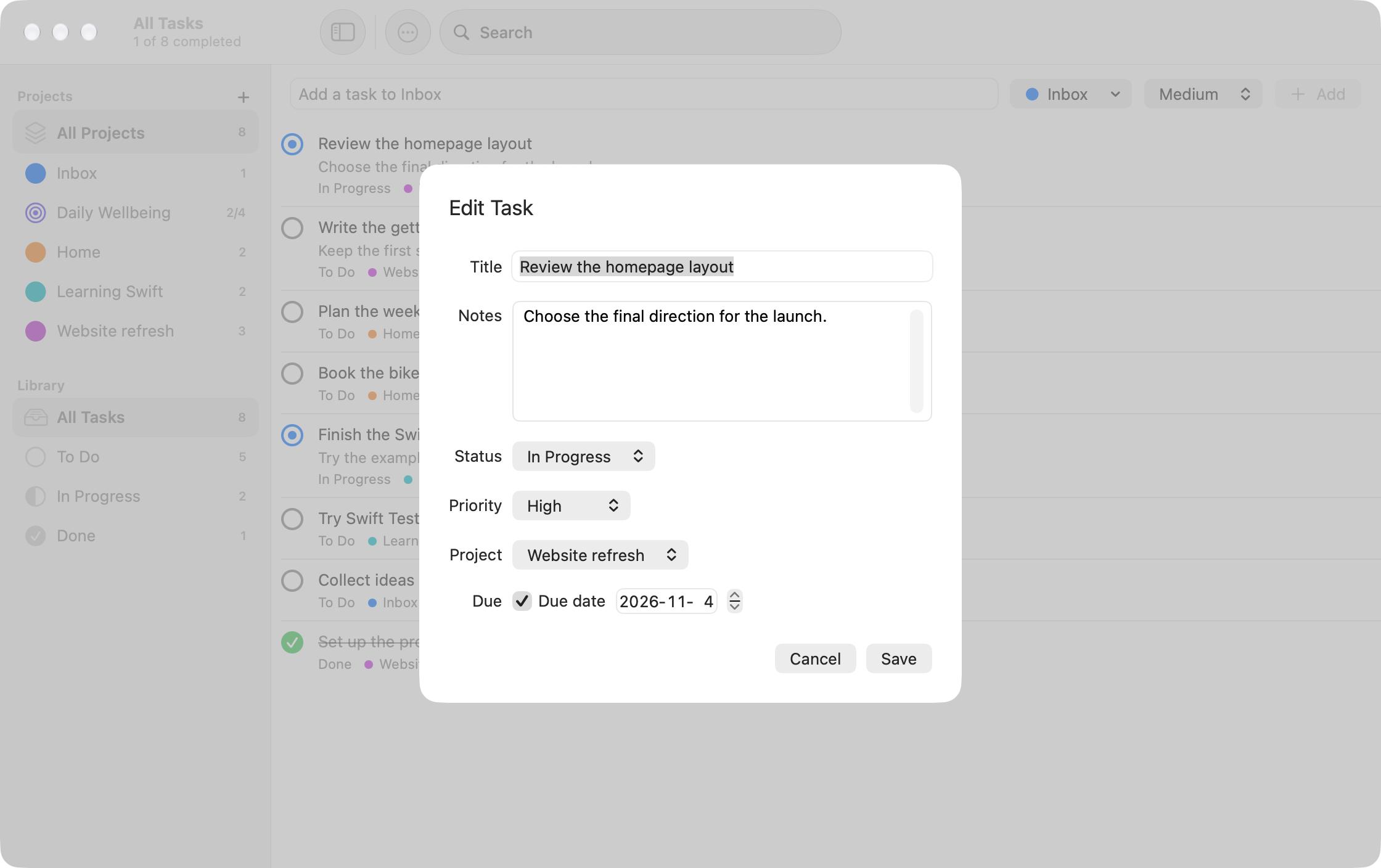
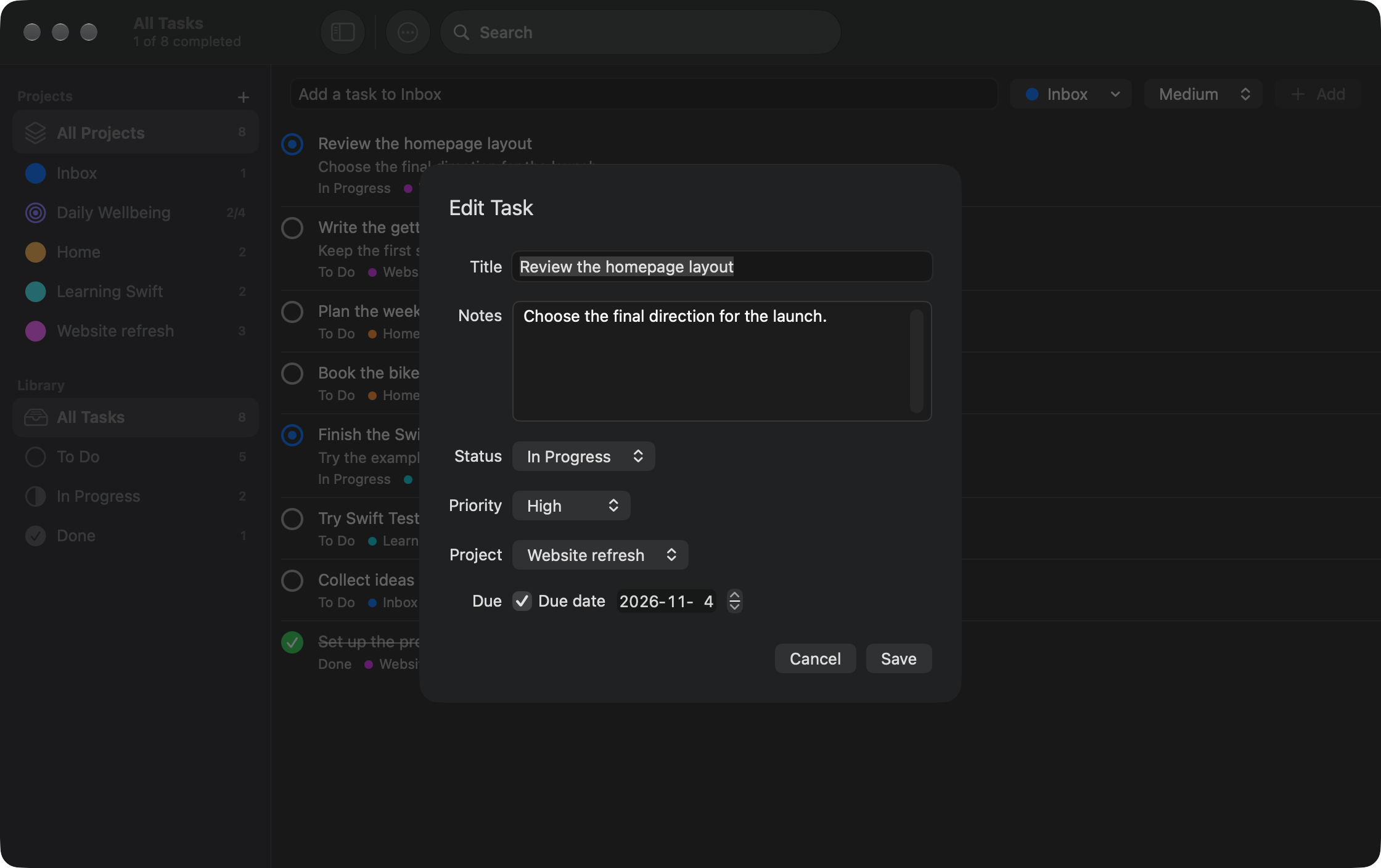
Section titled “Edit details or move a task”Double-click a row, select it and press Return, or choose Task > Edit Task (Command-E). You can also Control-click a row and choose Edit.
Change the title, notes, status, priority or project, then choose Save. Choose Cancel or press Escape to discard changes. Pressing Return in the title field saves.
The Project picker moves the task to another active Tasks project. If its current project is archived, that project remains in the picker so you can keep the task there or move it out.
Status and completion
Section titled “Status and completion”Tasks have three statuses: To Do, In Progress and Done.
- Click the circle beside an unfinished task to mark it Done.
- Click a completed task’s circle to return it to To Do.
- To choose In Progress or another status explicitly, Control-click the row and use Change Status, or select it and use Task > Mark As.
Completing a task does not delete it. Done tasks have a struck-through title and appear after unfinished tasks. Within each group, tasks are ordered by priority, then due date (undated tasks last), then newest first.
Due dates
Section titled “Due dates”In the editor, turn on Due date and choose a calendar date. Turn it off to remove the date.
Unfinished tasks show Today, Tomorrow, or a short date. Dates before today show Overdue with the date. Completed tasks show the date without an overdue warning. A due date is not a timed reminder or notification.
Delete a task
Section titled “Delete a task”Select a row and choose Task > Delete (Command-Delete), or Control-click it and choose Delete. The list also handles Delete while it has keyboard focus.
Clear completed tasks
Section titled “Clear completed tasks”Choose File > Clear Completed or Clear Completed in the toolbar’s More menu. Review the number of tasks and confirm.
This permanently removes all Done tasks in the selected project, or all Tasks projects under All Projects, including archived projects’ tasks. It is not limited to the rows matching a search or status filter. Daily Goals progress is not affected. The command is disabled when there is nothing to clear.